|
Personal Backup Version 5.2 |
| © 2012, J. Rathlev, IEAP, Kiel University |
- Backup task
- New - Create new backup task
- Open .. - Open saved task stored on
disk
- Save - Save a modified task
- Save as .. - Save task under
new name
- Import .. - Import directories to be backed up from saved task
- Export .. - Save as a new task an individual
directory from an opened task
- Recently-opened tasks .. - List of recently-opened tasks
to facilitate reopening
- Quit - Exit or minimize program
- Actions
- Start backup .. - Start the current
backup task
- Add directory to task .. -
Select a directory to be backed up and add to task
- Verify backup
- Open dialog .. - Configure and carry out verification of files
- Load task .. - Load saved
task and open Verify dialog
- Restore
- Open dialog .. - Configure and carry out a restore of files
- Load task .. - Load saved
task and open Restore dialog
- Cleanup
- Open dialog .. - Configure and carry out Cleanup
- Load task .. - Load saved task and
open Cleanup dialog
- Create desktop shortcut ..
- Create a shortcut to the currently-opened backup task on the computer desktop.
Double-clicking this shortcut will immediately start the backup.
- Log
- View - Display and optionally print the log file
- Delete - Delete log file
- View other .. - Select and display any log file
- Update view (Function key F5) - Update the view of the selected directories
- Tools
- Scheduled Tasks
- Add current backup task - Configure
Windows Task Scheduler to perform the currently-loaded backup
- Edit scheduled task - Select a
backup task performed by Windows Task Scheduler and edit the schedule.
- Configure backup schedules -
Launch the supplementary program PbPlaner,
to configure alternating backup schedules using Windows Task Scheduler.
- Restore single files -
Launch the supplementary program PbRestore to select single files from
backup (even when compressed and encrypted) for restore to any location. You can
copy this supplementary program onto a USB stick to restore files in emergency without
installing Personal Backup in its entirety.
- Preferences
- Compress ..
- File types not to be compressed .. - File types that are already
compressed, such as Zip files or OpenOffice documents, should just be copied.
- Set file types to default values .. - The following types are by default
excluded from compression: zip, zipx, gz, 7z, arj, pdf, jpg, gif, png, odt,
ott, ods, ots, odg, odp, otp, docx, pptx, xlsx, mp3.
- Copy options
- Copy buffer .. - The program uses an internal buffer when copying or compressing files.
The size of this buffer is adjustable in multiples of 1 kB. Here you can set
your default value for new tasks (256 kB for Windows, 64 kB for FTP).
You can change this value for each
backup task individually.
- Security copies .. - Change the filename suffix (an identifier,
default bak, placed before the extension) for backup copies of files at the
destination
- View
- Show automatic task - After clicking one of the task buttons
1 through 8 the selected task is shown in the main window.
- Wait time after auto backup - After an automatic backup,
the status window is shown for a short time.
This time can be set here.
- Window
-
- Default size - Change the size of the window to the default values
- Default position - Set the window to the upper left corner
- Reduced height - Change the height of the window to a value that fits
smaller screens
- Narrow - Toggle between normal
and narrow window (without toolbar and start options)
- Show tooltips - Show or hide the additional tooltips when moving the
mouse over the program desktop
-
- Printer
- Selection .. - Select the printer for printing the log
- Page settings .. - Set the page margins for printing the log
- Font .. - Set the font for printing the log
- Log file
- Settings - Preferences for logging Backups,
Restores and Cleanups
- Directory
- Application data - (default)
- Select .. - The user can select a preferred directory for the log
- Program start
- Without splash screen - Enable or disable the splash screen showing the version of the program
(see command line option /hide)
- Delay .. - The time the program waits on automatic start (see
automatic backup) can be adjusted between 10
s (default) und 5 min. If there is an automatic backup to be performed on logon, this
will start after the given delay.
- Scan directories .. - When selected, causes the directories of the backup
task to be scanned on program start
- Check for updates - On program start, a connection to the Internet
will be established to check if a
program update is available
(default: enabled).
- Use proxy for updates - Configure a proxy server for
program updates.
- Shutdown - Action after
backup on logoff:
- and power off - After backup, the computer will be switched off
on all current Windows systems.
- and restart - After backup, the computer will be restarted.
- Task directory .. - Select
the directory where tasks are to be stored (default: My Documents\PersBackup).
- Ini directory - Location of the file PersBackup.ini where all the
basic settings of the program, including automatic tasks, are stored
(see also).
- Default - C:\Users\<name>\AddData\Roaming\PersBackup
- Select .. - Any user-selectable folder.
- Password length .. - Minimum length of password for encrypted backups
- Language
- Default - Use the system default language
- English
- German
- Help
- Overview - Brief summary
- Desktop - Show this help file
- License - User license
- Version - Version info
- Changelog - Information on version history
- References - Information on components used from other authors
- Check for update ..
- A connection to the Internet will be established to check if a new update
is available
(details).
-
Homepage - Homepage of Personal Backup
-
Donate - Make a donation to Personal Backup
Context menus
A right-click on certain areas of the desktop opens one of the following context menus.
|
Area "Task"
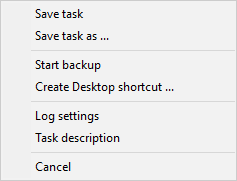
- Save task
- Save current task to disk
- Save task as ..
- Save current task to disk as new file
- Start backup ..
- Start current backup task immediately
-
Create desktop shortcut ..
- Create a desktop shortcut for starting the currently-open backup task
- Log settings ..
- Settings for the backup log
|
|
Area "Destination directory"
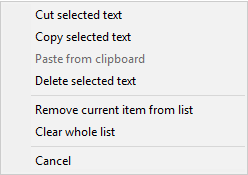
- Cut selected text - The marked text in the destination field
will be copied to the clipboard and then deleted.
- Copy selected text - The marked text in the destination field
will be copied to the clipboard.
- Paste from clipboard - Text from the clipboard will be inserted into the
destination field.
- Delete selected text - The marked text in the destination field
will be deleted.
- Clear selected list item
- The selected destination directory will be removed from the internal
list of recently-used directories.
- Clear whole list
- The internal list of recently-used directories will be deleted entirely.
|
|
Area "Directories to be backed up"
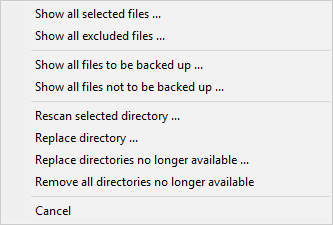
- Show all selected files
- Show all files that are selected for backup using the current filter settings
- Show all excluded files
- Show all files that are excluded from backup using the current filter settings
- Show all files to be backed up
- This item is only available when using the archive bit for selection. All files
with this bit set are displayed.
- Show all files not to be backed up
- This item is only available when using the archive bit for selection. All files
with this bit not set are displayed.
- Rescan all directories
- All directories to be backed up will be scanned to update all views.
|
|
Area "Subdirectories"
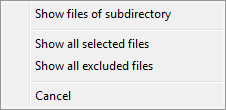
- Show files of subdirectory
- All files located in the selected subdirectory will be displayed. This is
very useful for checking whether there are any files that should or should
not be backed up.
- Show all selected files
- Show all files that are are selected for backup using the current filter settings
- Show all excluded files
- Show all files that are excluded from backup using the current filter settings
|
|
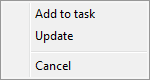
Area "Directory selection"
- Add to task -The selected
directory will be added to the backup task.
- Update - Update directory tree.
|
Notes for experienced users
Where to find the ini file (program settings) and the log file
All program settings including the configuration of automatic backup tasks
are saved in an ini file (Persbackup.ini). This is a text file and can be read
with any text editor. Editing this file is, however, not recommended.
The ini file and the standard log file (Persbackup.log) are located in the
user's application data directory. You will find this at the following locations:
- Vista and Windows 7: C:\Users\<Username>\AppData\Roaming\PersBackup
- Windows 2000 and XP: C:\Documents and Settings\<Username>\Application Data\PersBackup
Note: By default this directory is hidden. To make it visible, change the Windows
Explorer setting via Tools ⇒ Folder Options ⇒ View ⇒ Show hidden files and folders.
Starting the program from a USB flash drive
It is possible to configure Personal Backup in such a way that it can be
started from a USB stick or drive without leaving traces on the host PC.
Copy all files from the program directory (usually C:\Program Files\Personal Backup x)
or the downloadable
zip file to a directory
on the USB drive (e.g. K:\PersBack).
When starting the program from there all settings (Ini file) and the log
file are not stored at their usual location (AppData) but in the
program directory on the USB drive.
J. Rathlev, Kiel, Germany, November 2011