
 |
Personal Backup Version 5.9 |
| © 2001 − 2018, Dr. J. Rathlev |
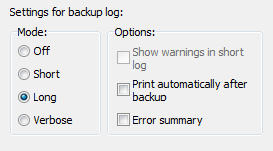
If you so wish, Personal Backup can maintain a log file of all actions. The basic settings for logging are made in the dialog called from Preferences ⇒ Log ... in the main menu. In addition to the preferred log mode you can adjust at this point if a log shall be written not only during backup but also during restore, clean up and/or verification. These presettings will be used for each new backup task. An individual adjustment for each task can be made in the task options.
If there will occur errors during a backup or during the other actions, you can look into the log file to find out which files caused the problems. The verbose mode will contain a great deal of additional information (e.g. about system errors) and can be used for debugging purposes.
Unless specified otherwise in the task options,
the log file will always be found as PersBackup.log in the user directory
Application Data\PersBackup (see here).
As new logs are added to existing entries, the log files will grow ever larger.
The size of these files can be limited under
Log settings. On
reaching the selected size, the program will rename the current log using the
current date (PersBackup yyyy-mm-dd.log) and continue with a new, initially
empty, log file.
As a result of this, the number of log files will grow over time. To prevent
this, the program contains a facility for the manual or automatic deletion of old
log files no longer needed (see here).
One of the following log modes can be selected depending on the data you wish to be included:
Using the task options you can arrange for a mail notification to be sent after backup to one or more recipients. The log file of the last backup can be attached.
 Viewing the log file
After clicking this button or the menu item Actions ⇒ Log ⇒ View, a viewer window will open and shows the log file belonging to the current opened backup task. Clicking the appropriate button will print out or delete the log file. Additionally, you can search for the beginning of a backup section (blue arrows), backup errors (red arrows) or any other text. To copy text to the clipboard, no text selection is required for the whole text. For part of the text, select a section and type Ctrl+C or Ctrl+Ins on your keyboard.
To print only part of the log, the desired text should be selected using the mouse or keyboard. If nothing is selected, the whole log will be printed out.
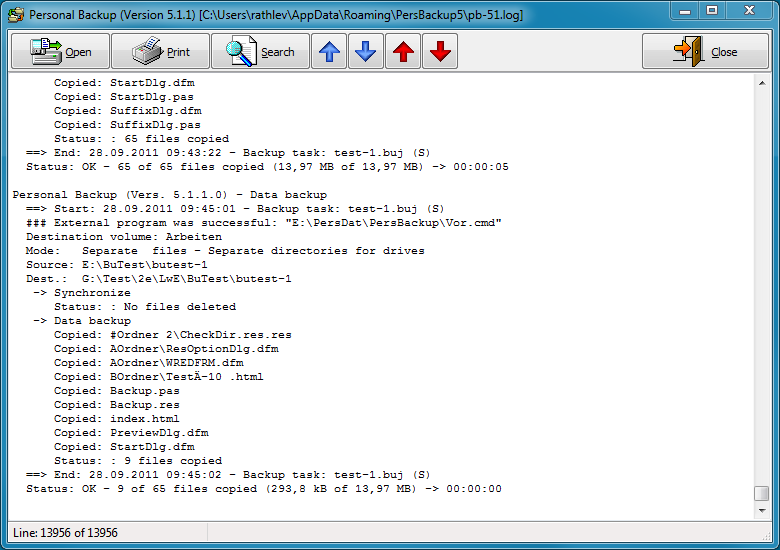
The following shortcuts are used in the log files to give the user some additional information.
| ... | |
| Copied: "<file path rel. to source>" (n%) | Destination file does not exist |
| Copied: "<file path rel. to source>" (A - n%) | Destination file does not exist Archive bit was reset |
| Copied: "<file path rel. to source>" (U - n%) | Destination file was replaced |
| Copied: "<file path rel. to source>" (A,U - n%) | Destination file was replaced Archive bit was reset |
| ... | |
| n = Size of the compressed file relative to original | |
| -a-- 2010-09-22 10:13:47 -> not present | new copy | |
| -a-- 2014-12-18 17:34:52 -> 2014-11-12 19:33:14 | update | |
| -a-- 2004-12-18 17:34:52 <-> 2004-12-18 17:34:54 | identical - no copy | |
| ↑↑↑↑ | Attributes: | |
| r--- | read-only | |
| -a-- | archive | |
| --h- | hidden | |
| ---s | system | |