
 |
Personal Backup Version 5.9 |
| © 2001 − 2018, Dr. J. Rathlev |
Personal Backup is distributed as an executable Windows setup file:
To install the program, administrator rights are required.
In addition to the program itself, the distribution file also contains all available
language modules, the relevant help files (*.chm), the libraries and certificates
for secure FTP and mail transfer and some addons (PbRestore, PbPlaner).
Optionally, the installation can automatically create file associations for the task files
(extensions: buj for backups (more ..),
rsj for restore, cuj for cleanups and vfj for verifications),
so that double-clicking one of these task files will start the program.
Additionally you can configure the
program to send log entries to Windows Event Viewer during automatic
backups. If selected, a restart of Windows is recommended because the event log
will not be activated until then. The function of the backup program itself does not
require an immediate restart.
For program removal, use the Programs and Features facility in Windows Control Panel or
the Uninstall Personal Backup item via the Windows Start menu.
Administrators who want to run an automatic unattended installation should use the following parameteres in the command line (refer to InnoSetup documentation):
Example: pb-setup-5.x.yyzz.exe /SP- /verysilent /suppressmsgboxes /nocancel /norestart /norun
To update to a new version, just download and execute the current installation file. It will automatically replace all old files in the Personal Backup installation directory with those of the new version.
Click Check for update in the Help menu of the program to check if an update is available. You can download and install it immediately.
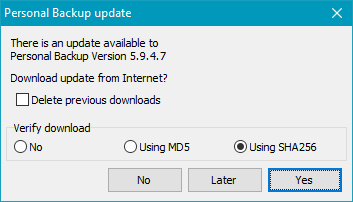
If this option is enabled (default), the program tries to connect to the Personal Backup download server biweekly to check if an update is available. If so, the user will be asked whether this is to be downloaded:
Note: The automatic update option can be disabled in the preferences dialog (Program start ⇒ Automatic program updates):
After installing the program you will find a corresponding entry in
the Windows Start menu and, if so selected during installation, a desktop icon.
If the autostart function with time schedule or backup on logoff was selected,
you can launch the program by right-clicking the icon in the
Windows notification area
and selecting Personal Backup.
After downloading, unpack all files from the zip file into any directory. This
may for instance also be located on a USB stick (refer to).
The program can be started immediately by double-clicking the file PersBackup.exe.
Keep in mind that no shortcuts on the desktop or in the Windows start menu
will be created. This must be done manually by the user. It is recommended
for inexperienced users to use the setup described above
instead.
For updating the program, download the current zip file and
unpack all files from it to the same directory by overwriting all older files.
Due to the user account control since Windows 7 the rights of an
administrator are required.
It is possible to configure Personal Backup in such a way that it can be
started from a USB stick or drive without leaving traces on the host PC.
Copy all files either from the zip file as described above or if the program
has been installed in the normal way from the program directory
(e.g. C:\Program Files\Personal Backup 5 to a directory
on the USB drive (e.g. K:\PersBack). If you now were now to
start the program PersBackup.exe from there, all program settings,
backup tasks and log files would be saved in several subdirectories of the
logged on user (see more).
To avoid this, you should start the program using the command line option
/portable. To do so, you can use a
batch file or a shortcut containing this line
K:\PersBack\PersBackup.exe /portable
All program files now will be redirected to the directory on the USB stick from
where the program was started.
For individual configurations you can use a batch file with some other command line options to start the program: /ini:[Filename], /taskdir:[Directory]and /logdir:[Directory]. Use a text editor to create such a batch file (e.g. startpb.cmd) in the root directory of the USB drive (e.g. K:\) with the following lines. Please note that when using placeholders the enclosing % signs must each be escaped by using a second %.
   @echo off
   echo Start Personal Backup from USB flash drive
   start PersBack\PersBackup.exe /i:%%progpath%%\pb.ini /t:%%progpath%%\tasks /logdir:%%progpath%%\logs"
After starting the program for the first time, configure and save your backup task. To use a backup target directory on the USB drive itself, omit the the drive letter from the destination path (e.g. \Backup) or use the volume name of the USB drive (see here). The latter will also work if the destination path is on another external drive. In doing so, you avoid problems arising from Windows assigning different drive letters.
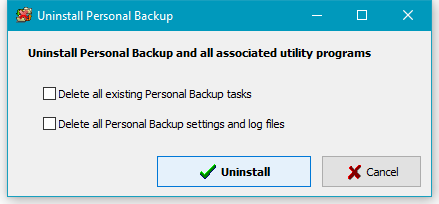
The best and easiest method of uninstalling the program is to use the Windows Start Menu -
Personal Backup - Uninstall Personal Backup route. On doing this, you will be offered the
option of deleting also all user-created backup tasks, saved program settings and log files
prior to uninstalling the program. Removal of the program and the selected user files
is then initiated by clicking the Uninstall button.
As an alternative method you can use Uninstall via the Windows Control Panel, but
this method offers no way simultaneously to remove the user-created tasks and
logs as described above.
All program settings including the configuration of automatic backup tasks
are saved in an ini file (Persbackup.ini). This is a text file and can be read
with any text editor. Editing this file is, however, not recommended.
The ini fileand the standard log file (Persbackup.log) are located in the
user's application data directory (except on starting from a USB stick - see above).
You will find this at the following locations:
Note: By default this directory is hidden. To make it visible, change the Windows Explorer setting via Tools ⇒ Folder Options ⇒ View ⇒ Show hidden files and folders.