
 |
Personal Backup Version 5.9 |
| © 2001 − 2018, Dr. J. Rathlev |
After starting the program, an
 icon will be
displayed in the Windows notification area (usually at the bottom right-hand
corner of the screen). Under Windows 7, 8 and 10 this icon may initially be hidden, in
which case click the arrow adjacent to the notification area to view all hidden
icons. To show the icon permanently, right-click an empty area on the taskbar,
click Properties and under Notification area, click Customize and select
the option Show icon and notifications.
icon will be
displayed in the Windows notification area (usually at the bottom right-hand
corner of the screen). Under Windows 7, 8 and 10 this icon may initially be hidden, in
which case click the arrow adjacent to the notification area to view all hidden
icons. To show the icon permanently, right-click an empty area on the taskbar,
click Properties and under Notification area, click Customize and select
the option Show icon and notifications.
This will display the schedule of all automatic backups. Optionally, you can open the program desktop window by clicking the Show desktop button.
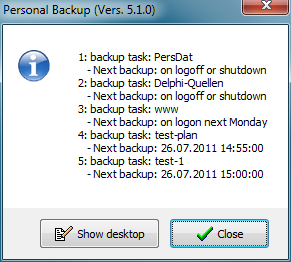
When using multiple monitors it can happen that the program window remains hidden because it is located on a monitor that has been removed or switched off. In this case right-clicking the icon will optionally move the window to its default position on the first (main) screen.
This will open a local menu to start several different actions. Clicking on
Personal Backup will open the program desktop window
to create or edit backup task and to start it manually,
Clicking on Quit Program will terminate the program running in background.
The icon will be removed from the notification area and no more automatic backups
will be performed until the next user logon.
Clicking on Cancel will close the right-click menu without further action.
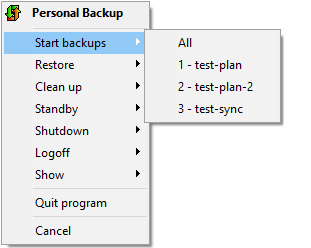
The list shows all tasks designated for automatic execution. You can either start all listed tasks one after another or one selected. Before starting the backup in any case a dialog is opened to optionally specify standby or hibernation afterwards.
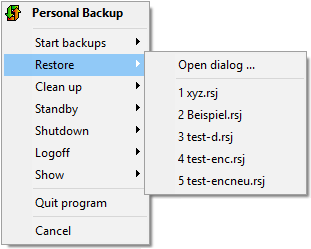
The list shows all recently used restore tasks. After selecting one of them the associated configuration will be loaded into the dialog window for restoring files and can there be started manually. Alternatively, the dialog can be opened without loading a task, e.g. to create a new one.
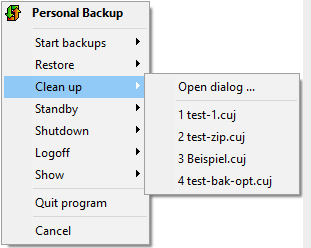
The list shows all recently used clean-up tasks. After selecting one of them the associated configuration will be loaded into the dialog window for Clean up directories and can there be started manually. Alternatively, the dialog can be opened without loading a task, e.g. to create a new one.
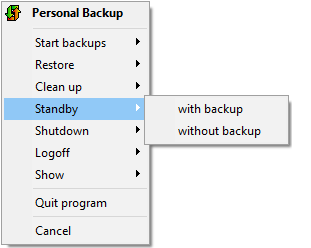
The computer will be put into standby mode. Optionally, you can select if the backup tasks designated for execution at logoff shall be performed before.
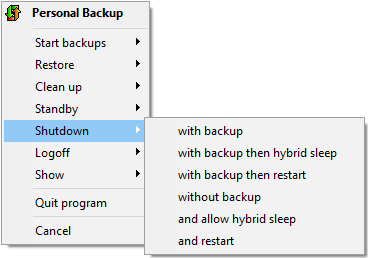
You can select how to shut down the computer and if backups should be performed before.
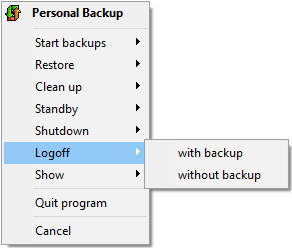
The user will be logged off. Optionally, you can select if the backup tasks designated for execution at logoff shall be performed before.
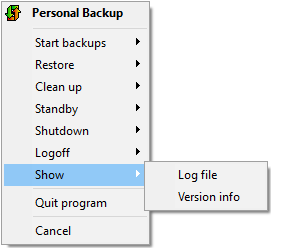
You can either open the program's log window or display with Version info of the running program