
 |
Personal Backup Version 5.9 |
| © 2001 − 2018, Dr. J. Rathlev |
 Restore data from backup
In the event that data has been lost and must be restored from a backup, the program offers two options:
Clicking the button in the tool bar on the left will open a dialog window in which you can select which files and from which directory you wish to restore and to which directory the files are to be copied. These settings can be saved as task (<filename>.rsj) for use at any time.
There is a list of the most recently-used Restore tasks held by the program. Clicking
the  button
will immediately load one of these tasks.
button
will immediately load one of these tasks.
Right-clicking the button will allow the list to be edited.
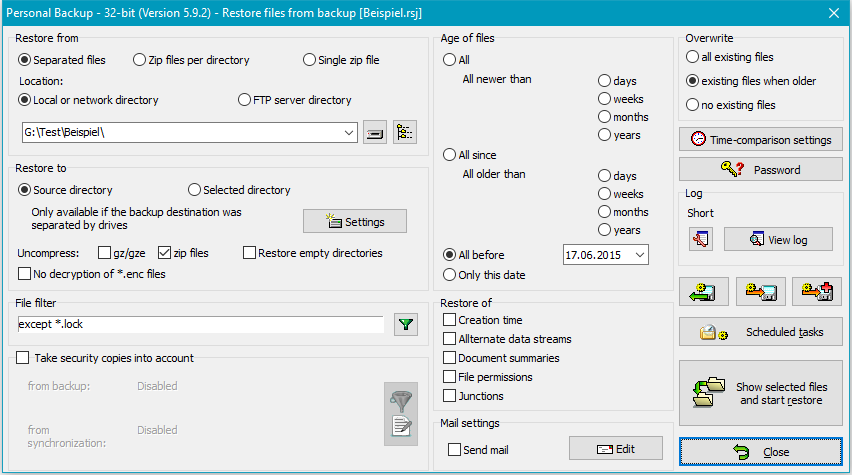
When restoring files, you must consider how the data was backed up (see Backup destination):
 button will open a dialog to configure the FTP server connection parameters
(see here):
button will open a dialog to configure the FTP server connection parameters
(see here):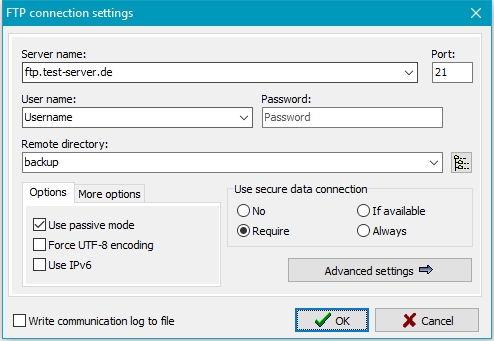
 button, the program will connect to the FTP server and read the remote directory tree
of the backup for the user to select a subdirectory.
button, the program will connect to the FTP server and read the remote directory tree
of the backup for the user to select a subdirectory.
Files can be restored either to the original source directory or to any other location:
button will
open a dialog where you can select the directory.
In this mode, the restore function can be used to make copies of all backed-up
files in their original directory structure at a different location,
e.g. on another computer.Uncompress gz/gze and zip files
If the backup was made into single compressed files, select the same mode as
used during backup. So all files will automatically be unpacked on restore
in the right way (default setting : gz/gze).
No decryption of enc files
Personal Backup adds the file
extension enc for uncompressed encrypted files. These files are
decrypted automatically on restore. If there are files from another application
using this extension, the decryption will fail. You can prevent the program
from decrypting such files by checking this option.
Restore empty directories
If this option is selected, even empty directories will be restored.
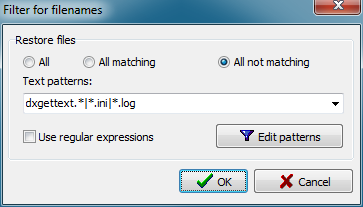
By using filename filters, filenames matching certain
patterns may be included or excluded. Use the same rules as
described for backup file filters
(Standard file filter
or Regular expressions).
This option is disabled by default and should be activated only if
Security copies
were created during backup.
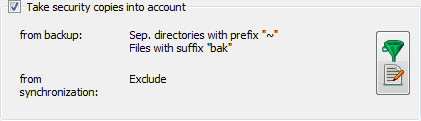
Use this option to define how these security copies shall be taken into account
during restore. The settings for prefixes and suffixes must be set in the dialog
(see screenshot on the right) as used during backup to identify these directories
and files. If they are to be excluded, do not mark the checkboxes (default setting).
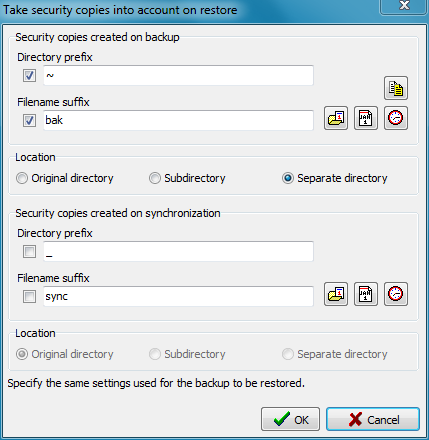 If you want to restore the state to that of a former date, first specify this date under
File age - All before ... (see below). Then, select by ticking the appropriate
check boxes which security copies are to be taken into account for restore. Do not forget
to specify where the security copies were created on backup (e.g. in a separate
directory). The preview then will show in each case the most recent security copy
matching to the selected time slot. The restore will move the files automatically to
their correct location.
If you want to restore the state to that of a former date, first specify this date under
File age - All before ... (see below). Then, select by ticking the appropriate
check boxes which security copies are to be taken into account for restore. Do not forget
to specify where the security copies were created on backup (e.g. in a separate
directory). The preview then will show in each case the most recent security copy
matching to the selected time slot. The restore will move the files automatically to
their correct location.
You can specify whether you want to restore only files newer or older than a given fixed or relative date.
Creation time
If this option is selected, the creation time
of the files will also be restored.
Alternate data streams
If this option is checked, any alternate data streams saved with the
files (see here), will be restored.
Document summaries
If this option is checked, the document summaries, possibly saved with the
files (see here), will be restored.
File permissions
In NTFS file systems and network shares, an access control list (ACL) that specifies
the permissions for each user is associated with each file and directory.
If this option is set, also the permissions of files and directories will
be restored (see here). For this to happen, it
is necessary that ACLs are supported by both source and destination.
Junctions
If this option is set, the information about junctions saved during backup
(see here) will be analyzed to
recreate the junctions in the destination directory of the restore.
Depending on the restore settings, the contents of the directories, to which
the junctions point, must possibly be restored separately.
Important note: To restore junctions, administrator rights
are required.
Similar to the option for backups, a mail with status
information and optionally a log file can be sent after
performing a restore task. The settings
are the same as for backup.
Here you can specify whether existing files are always to
be overwritten, or only when they are older than those from
your backup, or never.
Comparing the timestamps of files is problematic when using different file
systems. Adjust the settings
to be system-independent.
Here you can optionally specify a fixed password to be used for decryption of files.
In this case the user will not be prompted to enter it during restore. So
a restore may be performed in background without user interaction.
The icon on the button changes to show whether a fixed password
 was specified or
the password has to be queried
was specified or
the password has to be queried  on restore.
Clicking the  button will open a dialog to adjust
the log settings for restore.
button will open a dialog to adjust
the log settings for restore.
Click then  button to view the current log.
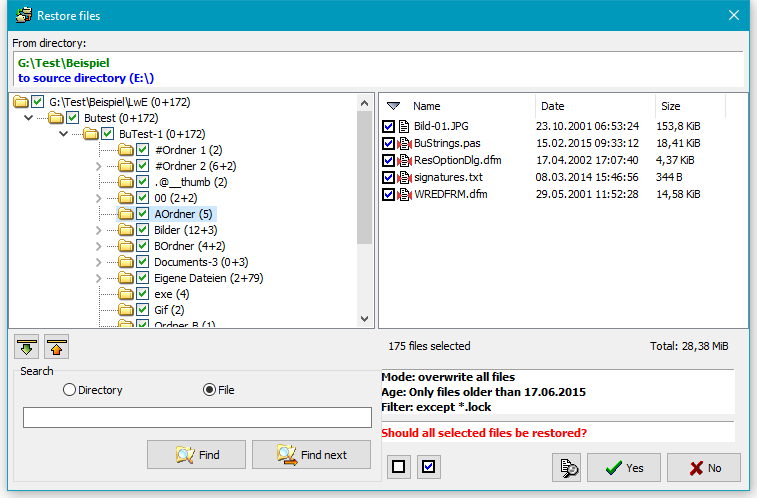
Clicking the  button will start the restore. Before restoring any files, the program will
create and display a list of all files that match the filter conditions.
If the selection is not to your liking, you can cancel the restore at this point and adjust
your settings. It is also possible to select or deselect files or
directories individually by tagging the checkboxes.
button will start the restore. Before restoring any files, the program will
create and display a list of all files that match the filter conditions.
If the selection is not to your liking, you can cancel the restore at this point and adjust
your settings. It is also possible to select or deselect files or
directories individually by tagging the checkboxes.
Right-clicking a file will open a local menu that allows
its contents to be viewed or compared with the source (if
available). The selections required for the external viewer
and comparison program can be made by clicking the
 button:
After this, all selected files will be restored. Any necessary unpacking and decryption will occur automatically. If required, a password must be entered by the user only once. If you wish, you can save the password with the restore task (more ..) to avoid any interaction during restore
Clicking the  or
or  button will save a configured restore task with all settings to disk.
To load and reuse such a saved task, click the
button will save a configured restore task with all settings to disk.
To load and reuse such a saved task, click the
 button.
A saved restore task can also be started from the command
line. This makes it possible to use the Windows Task
Scheduler to restore files at specific times, or to restore
a directory (for example automatically on logon) by adding
a shortcut to the Windows start menu (see All Programs ⇒ Startup):
PersBackup /restore <rest-task>
You can configure a Windows scheduled task to carry out an automatic Restore
by clicking the  button. The configuration procedure is the same as described for backups.
 The additional program PbRestore
The program can be started via the Windows Start Menu or in Personal Backup by selecting Main menu - Tools - External Restore program in two different modes of operation:.
You can copy this supplementary program onto a USB stick to restore files in emergency without installing Personal Backup in its entirety.
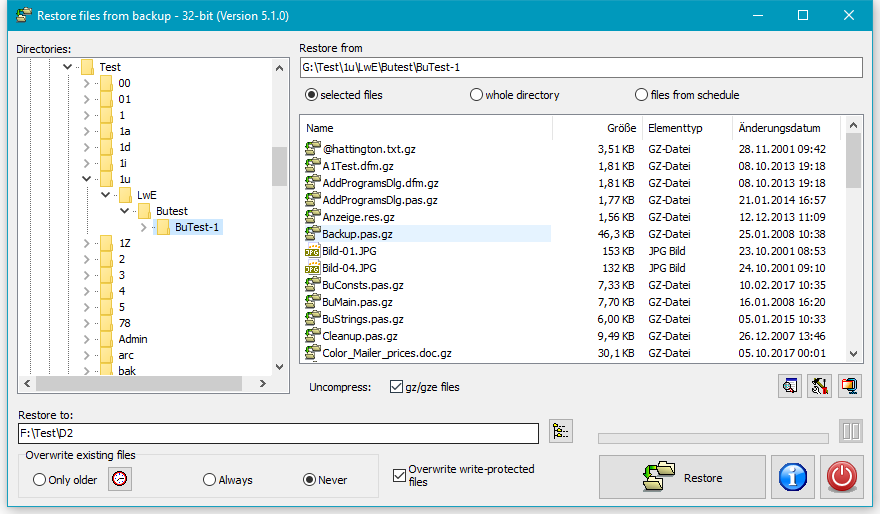
The program offers three options to restore data backed up into separate files:
In all three cases compressed and/or encrypted files will be unpacked and/or
decrypted automatically. The destination directory must be selected manually.
In addition you can select, whether files already existing in the destination
directory shall be overwritten or not. If only older files shall be overwritten,
you can adjust the settings for time comparison
(see here).
Optionally you can disable the overwriting of write-protected files.
By clicking the tool button at the lower right of the file list
you can adjust whether you
wish to associate gz, gze and enc files with PbRestore as
the default application in Windows. Click the most right button to switch to
zip mode.
First, on the left select the directory or zip archive, containing the files to be restored.
On the file list at right you can select the desired file(s) using the mouse in the normal way.
Clicking the Restore button will initiate the copying of files into
the specified destination.
Double-clicking a file or the Preview button at the lower right will
start the application associated in Windows with this file (e.g. an image viewer for
jpg file). gz files will automatically unpacked, on encrypted files
(enc or gze) or on encrypted zip archives the user will be prompted
to apply the password to start the decryption automatically.
Optionally you can disable the unpacking of gz/gze files.
First, on the left select the directory or zip archive, containing the files to be restored.
All files from this directory and its subdirectories (if any) or in the archive
will be copied to the destination directory. The directory structure will be retained.
Optionally you can disable the unpacking of gz/gze and zip files.
If your files were saved using an alternating schedule (Full backup in
conjunction with incremental/differential backups) the files will be
distributed to several directories (e.g. BD01F, BD02I, BD03I,..).
When restoring it is necessary to retrieve the most recent versions.
The user must specify the following items:
Optionally you can disable the unpacking of gz/gze and zip files.
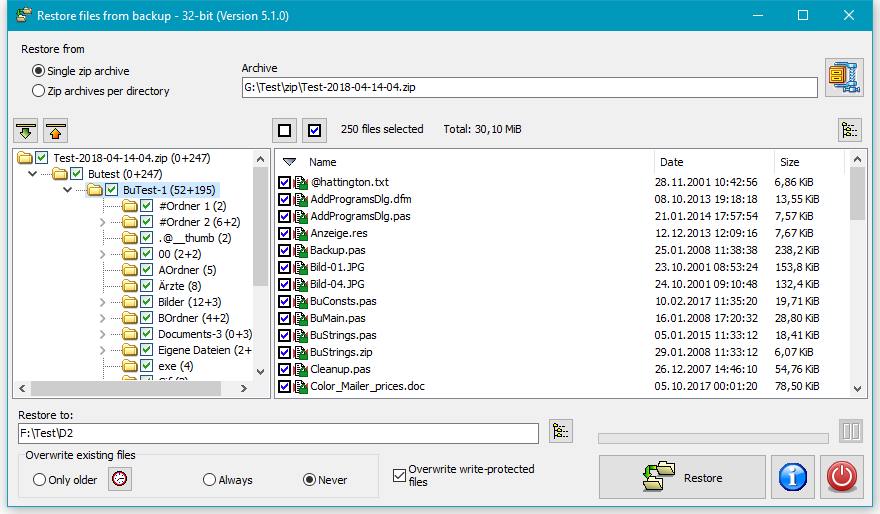
If the backup was placed into one zip archive
or into zip archives per subdirectory, the files can be unpacked using any
popular file archiver such as WinZip or 7zip. This applies even to
archives with encrypted data.
But if, in addition, also the filenames were encrypted (available since version 5.9.4),
a full recovery of backed-up data is no longer possible using one of these programs
(see here). The file data itself will be decrypted
correctly, but the filenames cannot be recovered. In this case the use of PbRestore
is required. The program will decrypt all directory names and filenames
on reading the zip archive and will rebuild the original directory structure.
Depending on the settings during backup, the following options are available:
Initially, all files are selected. By clicking the checkboxes to the left of the directories
and filenames, they can be alternatively excluded or included. Using one of the two buttons
above the file list, all files can be deselected or selected.
In addition you can select whether files already existing in the destination
directory shall be overwritten or not. If only older files shall be overwritten,
you can adjust the settings for time comparison (see here).
Optionally you can disable the overwriting of write-protected files. After
selecting a destination directory, start the restore by clicking the associated
button.
Click the button to the upper right of the file list to switch to
single file mode.
To control the operation mode of PbRestore, use the following command line options: