|
Personal Backup Version 5.9 |
| © 2001 − 2018, Dr. J. Rathlev |
 Start backup immediately
After clicking the button, the currently-opened backup task will
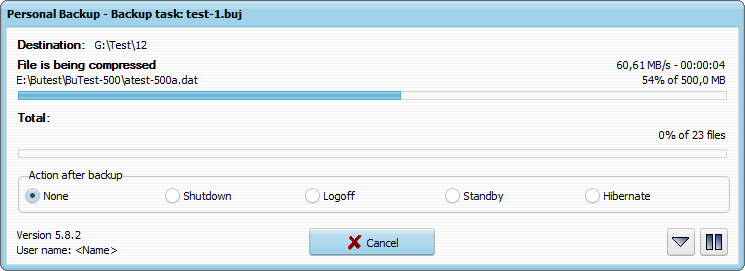
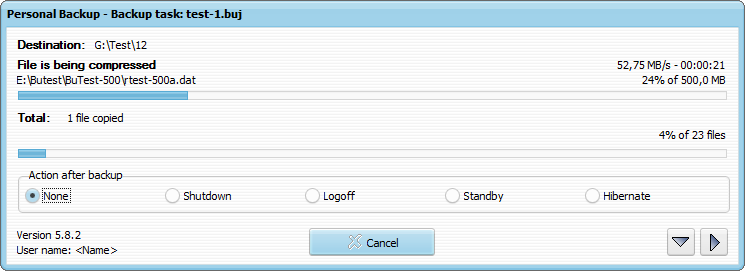
be executed immediately. On the screen, a window will appear displaying the status
of the running backup. At the top the destination directory to which the files
are copied is displayed, below the current action and the file that is being processed.
Th top bar shows the progress of the processing of a single file, the lower
the total progress. Depending on the program setting,
it will show the number or the volume of the copied files.
To cancel the backup, click the Cancel button. To pause the backup,
click the  button
(which will then become the
button
(which will then become the  button). On clicking the
button, the backup will resume (and the button will revert to its
state).
button). On clicking the
button, the backup will resume (and the button will revert to its
state).
The  button
can be clicked to minimize all windows of the program.
To restore the program windows, click the program icon in the taskbar
notification area.
button
can be clicked to minimize all windows of the program.
To restore the program windows, click the program icon in the taskbar
notification area.
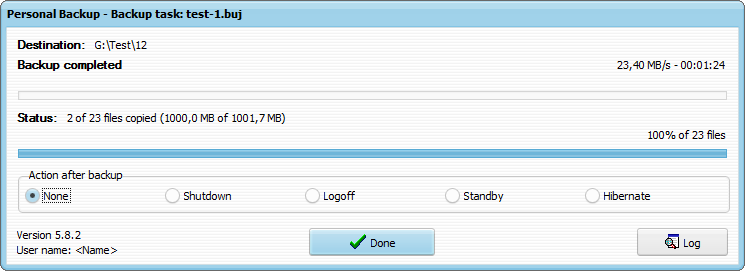
When the backup is finished, the window will indicate how many files have been copied and how many errors (if any) occurred. The window can be closed either automatically (see Options on automatic backup) or manually by clicking the Done button. In the example below, 2 of 71 files were copied. This means that 69 files from the source directory had not been changed since last backup and so did not need to be backed up. Clicking the Log button will close the status window and then open the current log file.
Action after backup: When starting a backup manually
or via the command line, you can arrange beforehand for a
subsequent action to take place: Shutdown, Logoff, Standby or Hibernate.
This is very useful when a backup will take a long time to complete and you
cannot wait for it to end to switch off the computer.
When starting a backup via the command line, the
subsequent action defined in the command
line will be displayed and can be modified during backup if desired.
Should errors occur during the backup, a check box for repeating
the backup will be
displayed. Enabling this option will cause the backup to restart immediately on closing
the status window.
Note: This option is not available with
automatic backups.