
 |
Personal Backup Version 5.9 |
| © 2001 − 2018, Dr. J. Rathlev |
A professional backup normally uses alternating backups. To save time and disk space a full backup is not performed every day (or at any other interval). For example a full backup would only be run once a week with differential or incremental backups on other days. Thereby the backups will use separate directories for each day. With differential or incremental backups only those files are saved that are new or have changed since the last backup, the criterion being the state of the archive bit of each file (see file attributes). This bit will be set by the system automatically on writing the file. During a full backup, all archive bits of successfully backed-up files will be reset, hence it is possible to determine which files have been changed since the last backup. The differential and incremental methods differ in the following way:
This has the following effect when restoring files:
Restoring is easier and faster with differential backups, but an incremental backup requires less disk space.
For more details refer to Automatic backups.
Another way to start backups automatically is to use Windows Task Scheduler (more ..). This method has some advantages especially when implemented on a server (reduced usage of resources, runs with any user account). To create alternating backups with this function in a convenient way, I developed the utility program PbPlaner (see screenshot below). It is part of the distribution package of Personal Backup (see Windows start menu ⇒ All Programs ⇒ Personal Backup).
Important note: PbPlaner as part of the package Personal Backup Version 5.9 requires Windows Task Scheduler version 2 which has been available since Windows Vista. Hence, the program cannot be used under Windows XP any more.
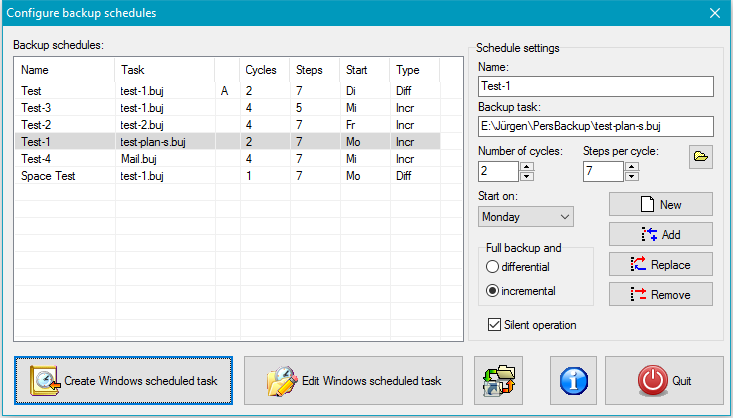
You can configure several alternating backups using this program. Their properties
are displayed as a list. If the third column shows an A, the
associated schedule is registered in Windows Task Scheduler (see below).
To edit a plan click on the appropriate line,
make the required changes in the fields on the right and apply these by clicking the
Replace button. Upon this, the selected plan will be reset to start.
To create a new plan, click New to clear all fields, make your desired
settings and click Add to append the plan to the list.
To remove a plan from the list, select it and click Remove.
Name: Save the plan to the list under this name.
Backup task: Click the
 button to
select a backup task previously configured with Personal Backup, provided
that it is not designated there as an automatic task. PbPlaner will then take
over management of the alternating destination directories.
button to
select a backup task previously configured with Personal Backup, provided
that it is not designated there as an automatic task. PbPlaner will then take
over management of the alternating destination directories.
Number of cycles: Specify the number of cycles each consisting of one full and several differential or incremental backups.
Steps per cycle: Specify the number of backups within one
cycle (including the full backup).
A cycle of 7 backups is a special case, in that the backups
will be coupled to the days of the week.
Start on: When a cycle of 7 backups is selected, you can specify the day of the week on which the full backup is to be performed.
Full backup and ..: Select the differential or incremental backup mode for the additional backups within a cycle. The full backup always uses the settings established in the backup task: Update or Full (new) (see also here).
Silent operation: If this option is selected, no notifications or
error messages are displayed on the desktop during backup. Instead, you can
retrieve this status information using Windows Event Viewer.
Click this button (at the bottom left of the screenshot) to add the selected
alternating schedule to Windows Task Scheduler
(more ..). Click the adjacent
Edit Windows scheduled task button to edit the settings of an existing
scheduled task.
Having started the program started e.g. from the Windows Task Scheduler, you can control it by setting the following command line options:
Changing an alternating schedule already designated as a scheduled task will
directly affect the next backup.
Be careful when selecting the dates for your backups: they must match the settings
for the alternating schedule. If you chose a cycle coupled to the
days of the week (i.e. a cycle of 7 backups), the backup must
start every day at a selectable time. All other modes allow
any time interval to be chosen.
The following guide will help the user understand how the program works.
button will open a dialog box for selecting the desired task.This completes the configuration of an alternating schedule. You can configure as many such schedules as you wish, but to implement these, each must be added as a Windows scheduled task.
It is possible to edit the time schedule either by clicking the Edit Windows scheduled task button in PbPlaner or by using the Windows functions reached via All Programs ⇒ Accessories ⇒ System Tools ⇒ Task Scheduler or via Control Panel ⇒ Administrative Tools ⇒ Task Scheduler