
 |
Personal Backup Version 5.9 |
| © 2001 − 2018, Dr. J. Rathlev |
All settings described below can be applied individually to each directory selected for backup. There are three basic options for confining the selection of files to be backed up, all of which can be combined in any way:
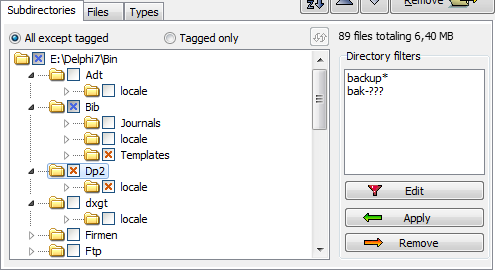
There are two main subdirectory-selection options:
 will be backed up. This option is selected by default so that directories added later
will always be backed up. As soon as at least one subordinate directory is selected
to be excluded from a backup, its parent directory will be marked with
will be backed up. This option is selected by default so that directories added later
will always be backed up. As soon as at least one subordinate directory is selected
to be excluded from a backup, its parent directory will be marked with
 .
Clicking the
.
Clicking the  symbol
will open the branch to display its subdirectories..
will always be saved.
symbol
will open the branch to display its subdirectories..
will always be saved. will be backed up.
Subdirectories added later will not be backed up unless intentionally manually tagged.
As soon as at least one subordinate directory is selected to be included in a backup,
its parent directory will be marked with
will be backed up.
Subdirectories added later will not be backed up unless intentionally manually tagged.
As soon as at least one subordinate directory is selected to be included in a backup,
its parent directory will be marked with
 .
Clicking the symbol
will open the branch to display its subdirectories..
will never be saved.
.
Clicking the symbol
will open the branch to display its subdirectories..
will never be saved.Right-clicking a subdirectory will display a context menu in which its files and folders can be previewed subject to a choice of options.
Note: If only a few subdirectories are to be backed up, it is usually better to add these directly as directories to be saved (see more) instead of selecting them as described above.
On directory trees with fewer than 5000 files, the status display (file count and volume)
above the Directory filters window is refreshed automatically. To save time
with larger trees, a refresh will not be performed until the
 button on the left is clicked.
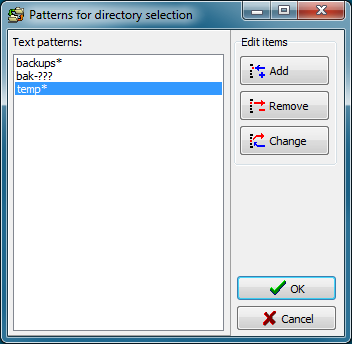
On the right of the dialog box under Directory filters you can define dynamic filters for subdirectory names. Each time before starting a backup, e.g. as automatic backup or by a desktop shortcut, the program checks whether there are subdirectory names that fall under the given filter conditions. These subdirectories will then be included in or excluded from the backup depending on the selection mode. For example, all directories with names starting with temp can be excluded from the backup. Any matching subdirectories created later will also be excluded.
This filter list applies for the whole of each backup task. You can select one or more items from the list to apply them to the current directory tree.
Select the desired filters in the Directory filters window and apply them to your tree by clicking the Apply button. You can similarly undo this selection by clicking the Remove button.
By double clicking a filter entry you can edit it directly. Clicking the Edit button will open a dialog box showing all filters (see screenshot on the right). Here you can add, remove and change filters. A filter must use the syntax described below or may be a regular expression:
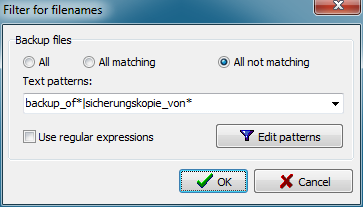
Clicking the Settings button will call a dialog box in which you can specify
certain filter conditions see below)
and select whether filenames (optionally including their extension) matching this
filter are to be backed up or not. Optionally, you can use
regular expressions. The search patterns
can be specified by editing the field directly or by editing a filter list after
clicking the Edit patterns button.
If more than one directory is to be backed up, the filter settings from the
previous entry of the list of directories to be backed up
can be copied by clicking the  button.
Filters only for file extensions should be set separately
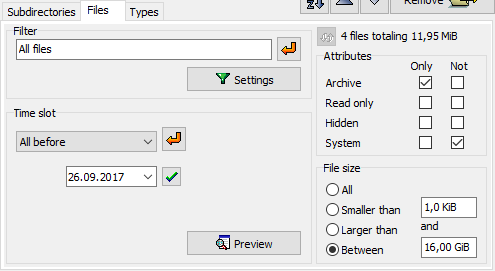
Optionally, you can restrict the backup and/or to files with selected attributes.
Using this option, you can restrict the backup to files with a modification date/time
within certain limits. If more than one directory is to be backed up, the setting from the
previous entry of the list of directories to be backed up
can be copied by clicking the button.
The required date can be set manually or by selection via the calendar. Please note
that changing date or time must be confirmed by clicking the
 button.
Note: It is also possible to specify these settings using a
command line option.
Optionally, you can restrict the backup and/or to files of a size within certain limits
Note: File sizes may be expressed using various unit prefixes (e.g. 1 kB, 2.5 MiB, 1.8 GB).
In this regard, the program follows the recommendations of
IEEE 1541
and therefore differentiates between binary and decimal prefixes.
Examples: 1 kB = 1000 bytes, 1KiB = 1024 bytes, 16 MB = 16 000 000 bytes,
16 MiB = 16*1024*1024 bytes = 16 777 216 bytes.
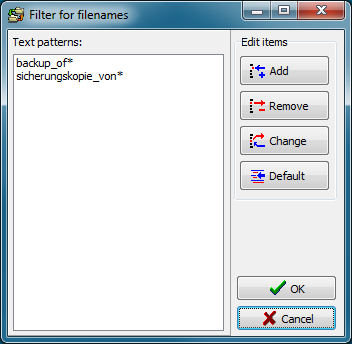
A valid file filter pattern consists of literal characters (e.g. letters or digits), sets and wildcard characters.
Each literal character must match a single character in the string. The comparison to literal characters is case-insensitive.
Each set begins with an opening square bracket ([) and ends with a closing square bracket (]). Between the brackets are the elements of the set. Each element is a literal character or a range. Ranges are specified by an initial value and a final value separated by a hyphen (e.g. [A-D]). Do not use spaces or commas to separate the elements of the set. A set must match a single character in the string. The character matches the set if it is the same as one of the literal characters in the set, or if it is in one of the ranges in the set. A character is in a range if it matches the initial value, the final value, or falls between the two values. All comparisons are case-insensitive. If the first character after the opening bracket of a set is an exclamation mark (!), then the set definition will be inverted, that is to say a character not in the set will be accepted as matching.
Wildcard characters are asterisks (*) or question marks (?). An asterisk matches any number of characters. A question mark matches a single arbitrary character.
Examples:
backups - the name matches exactly
backup* - all names starting with "backup" will match
[abc]* - all names starting with "a", "b" or "c" will match
?[ab]* - all names that have "a" or "b" as the second
letter will match
[a-m]* - all names having "a", "b", "c",
.. , "m" as the first letter will match
While their syntax is relatively complex, regular expressions can on the other hand be a very powerful tool. A brief description is included in the documentation of this program. For further information, search for literature on the subject. An overview can be found at Wikipedia.
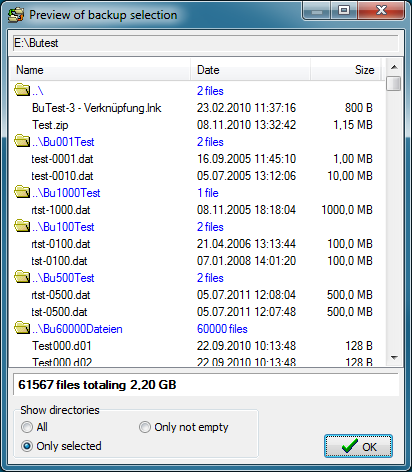
Clicking the  button
will open a window displaying all the files selected for backup. This is particularly
useful for checking the correct functioning of regular expressions,
for example.
button
will open a window displaying all the files selected for backup. This is particularly
useful for checking the correct functioning of regular expressions,
for example.
This preview can also be called via a context menu displayed on right-clicking a directory in the Directories to be backed up window and selecting the option Show all selected files. In this context menu there is also the option to Show all excluded files.
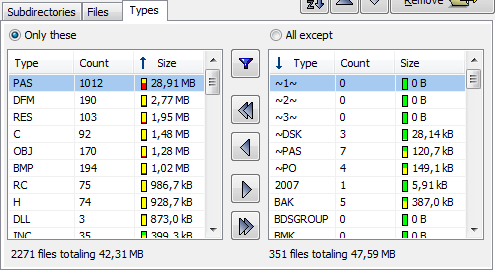
The indicator for file types is the file extension. When configuring your backup,
you can select which file types you wish to include and which to exclude from the backup.
Initially, with the All except radio button checked, all file types found in the
currently-selected directory and in all its subdirectories are displayed with their
extensions in the list on the left. This means that no files will be excluded from the
backup. Each row of the list shows the number and the total size of all files of
this type found in the current directory and its subdirectories. The total size of each
file type is visualized as a small bar. Green means low values (< 1 kB),
red large values (> 1 MB).
A click on a column header will change the sort sequence: sorted
alphabetically by name, sorted by file count or sorted by total size. A second
click on the same column header will cause the list to be displayed in reverse
order. The small arrow in the header shows the current selection.
The list on the right shows all types excluded for backup.
Clicking the Only these or All except
radio button establishes what the program is to do during a later backup with files
appearing in the lists:
On selecting a directory from the list in the Directories to be backed up window, the list of the file types found in that directory and all its subdirectories will always be updated and displayed in the lower windows. Depending on the selected mode they are sorted to the list on the left or that on the right (see above). File types can be moved at will between the two lists:
Below the type lists the number of files and the volume of the used disk space for all selected and not selected types inside the directory is displayed.
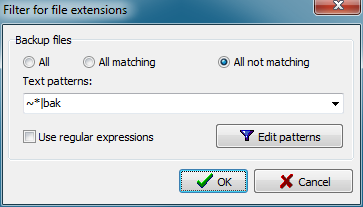
It is possible to select the file types to be backed up using a filter condition. The rules for setting the filter patterns are the same as those described for filenames (standard filter and regular expressions). You can decide whether the filtered types shall be included or excluded from the backup. If you choose this option, manual file-type selection will be disabled.
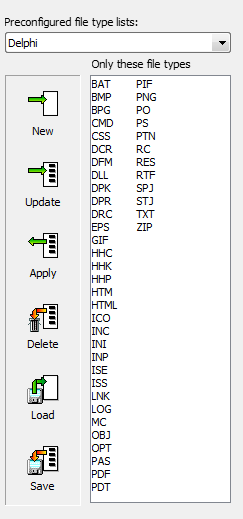 A list of file types can be stored under a unique name for possible later use
with other backup tasks. By means of the following buttons one of several functions
can be performed (see screenshot on right):
A list of file types can be stored under a unique name for possible later use
with other backup tasks. By means of the following buttons one of several functions
can be performed (see screenshot on right):